How to turn a GitHub README into a PDF
This guide covers Markdown READMEs, such as README.md. Take its text from GitHub, then make it a PDF in Markdown to PDF, in your browser tab, with no account.
Four steps
- Open README.md on GitHub. Choose it in the repository’s list of files.
- Download or copy it. The buttons at the top right of the file download it or copy its text (GitHub Docs: Viewing and understanding files (opens another company’s page)).
- Open Markdown to PDF. Choose the file, or paste the text.
- Download the PDF. Headings become bookmarks (up to 1,000); web, email and heading links stay clickable, and a relative file link, such as docs/setup.md, becomes plain text.
Good to know
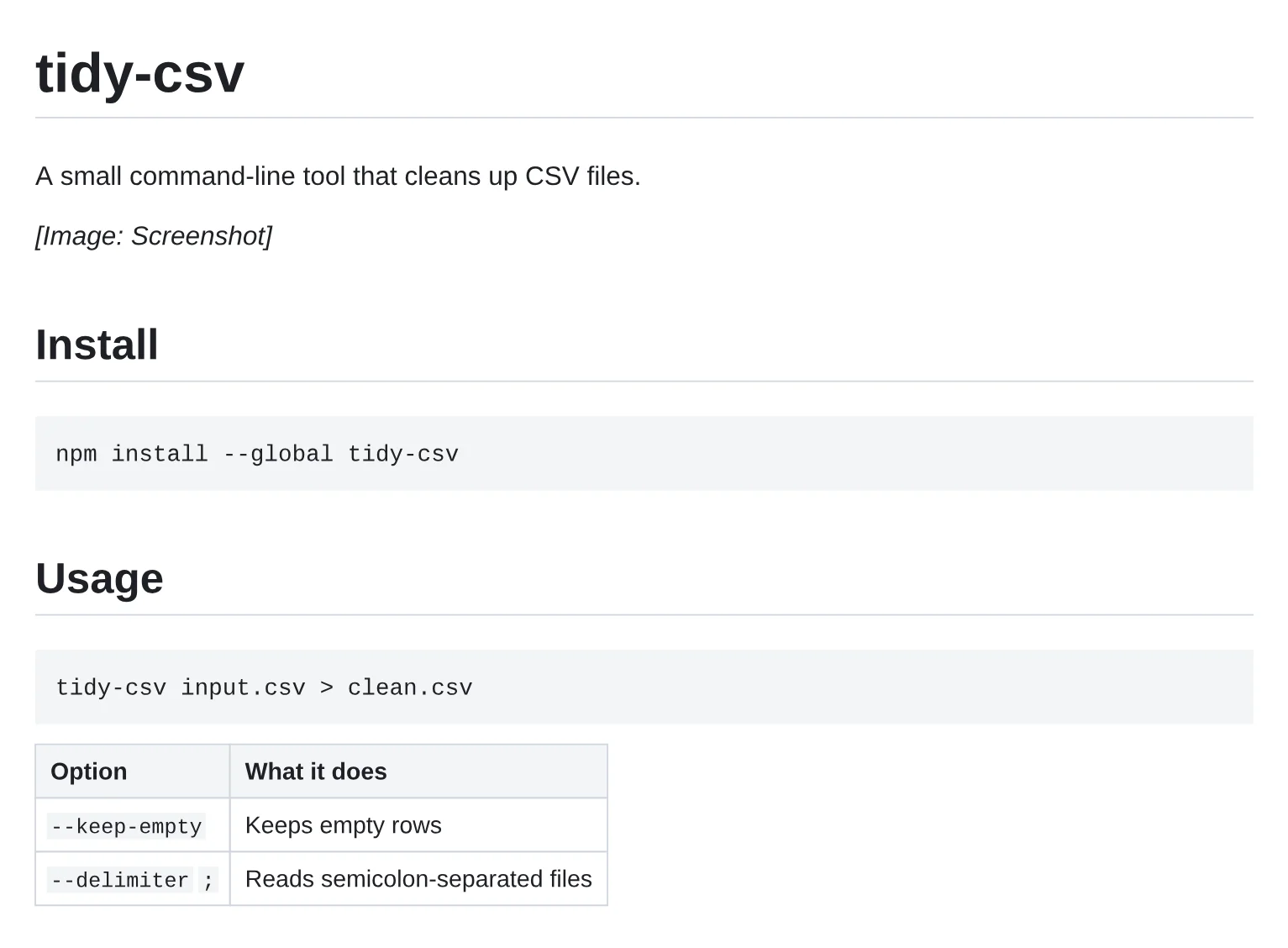
- Pictures won’t come through. A picture in the repository, such as docs/screenshot.png, shows as its alt text, and a badge or other picture on the web as its alt text and address. Neither is fetched.
- HTML in the README, such as a centred logo, is printed as written, tags and all.
- Latin letters only. The PDF’s fonts cover Latin alphabets; other letters, such as Greek, Cyrillic, Arabic or Chinese, show as �, and you’re told how many.
- Limits. Up to 1 MB of Markdown, embedded pictures included, and 500 pages; a longer document stops there and says so on its last page.
- Everything starts at pdfeditor.page, and there are 48 single-purpose tools at pdfeditor.page/tools.
- The other way round, PDF to Markdown turns a PDF’s text into a .md file.
- GitHub is a trademark of its owner; pdfeditor.page is not affiliated with it.
Questions
Can I paste the README’s web address instead?
No. It never opens a web address, so choose the downloaded file or paste the text.
Is the README uploaded?
Not without an account. It is read and made into a PDF in this browser tab.
Try it
Choose the README you downloaded, or paste its text. No sign‑up, no install.
Make a PDF