Markdown to PDF without installing Pandoc
Pandoc makes a PDF through LaTeX by default, so a LaTeX engine has to be installed too (Pandoc manual: Creating a PDF (opens another company’s page)). Markdown to PDF needs neither: it lays your file out as pages in your browser tab, with no account.
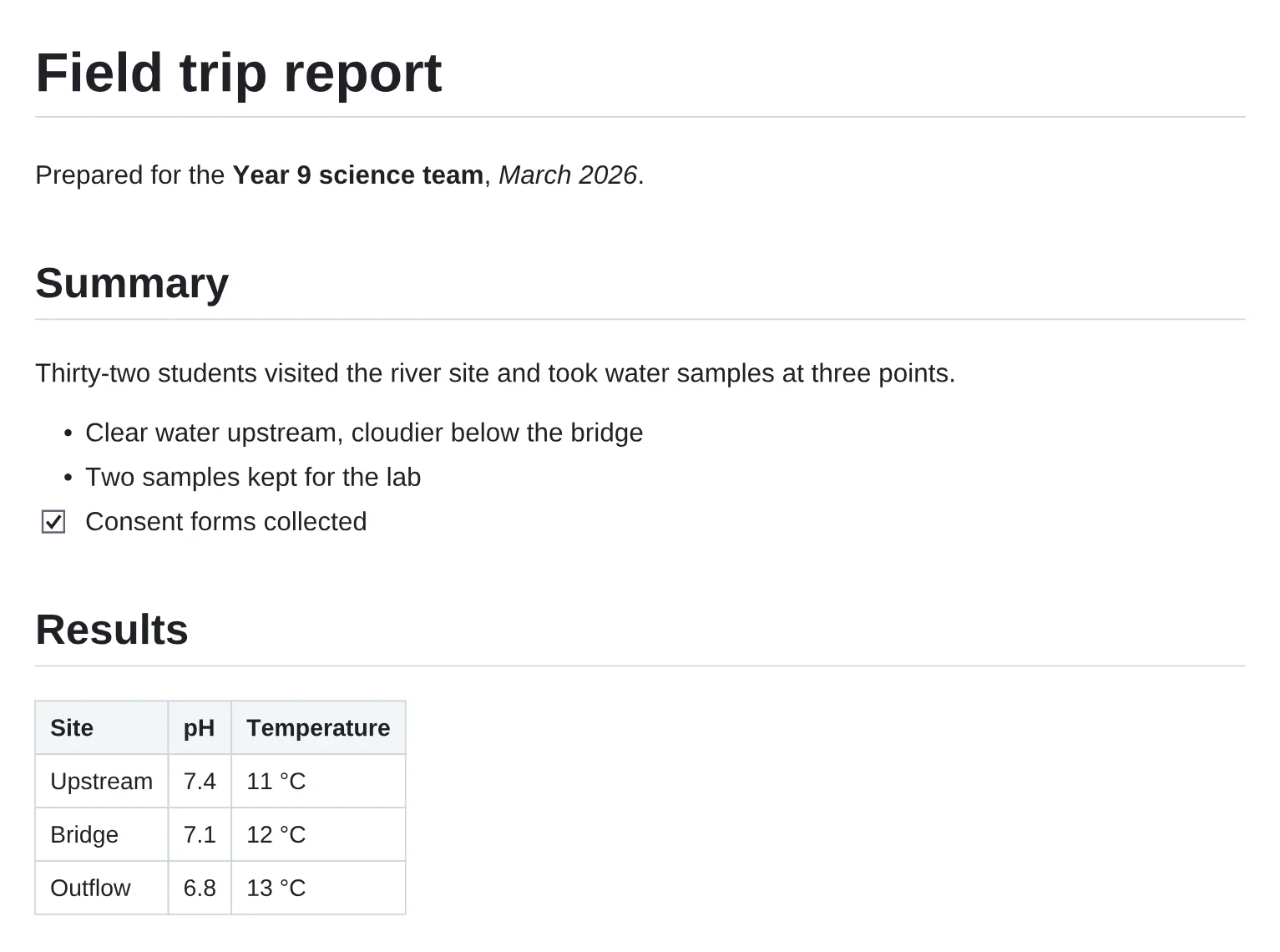
Three steps
- Open Markdown to PDF. Choose a .md file, drop it on the page, or paste the text.
- Let it lay out the pages. Headings, lists, tables, code and links become pages. Headings become bookmarks (up to 1,000); web, email and heading links stay clickable, and a relative file link, such as docs/setup.md, becomes plain text.
- Download the PDF.
Good to know
- Latin letters only. The PDF’s fonts cover Latin alphabets; other letters, such as Greek, Cyrillic, Arabic or Chinese, show as �, and you’re told how many.
- Pictures. A PNG or JPEG embedded in the file as a base64 data: address shows, within limits; in a heading or a table cell it becomes a label. A remote or relative picture is never fetched, and SVG, GIF and WebP aren’t drawn: its alt text is printed instead.
- Limits. Up to 1 MB of Markdown, embedded pictures included, and 500 pages; a longer document stops there and says so on its last page.
- Still writing? The Markdown editor shows a live preview and downloads the note as a .md file or a PDF.
- The other way round, PDF to Markdown turns a PDF’s text into a .md file.
- Everything starts at pdfeditor.page, and there are 48 single-purpose tools at pdfeditor.page/tools.
Questions
Is my Markdown uploaded?
Not without an account. It is read and made into a PDF in this browser tab.
Do I need to install anything?
No. It runs in the web browser on a computer, a tablet or a phone.
Try it
Choose a Markdown file or paste the text. No sign‑up, no install.
Make a PDF